
NieR: Automata Steam Deck Settings for Smoother Play
Tune NieR: Automata Steam Deck settings for a 60 FPS target, fix blurry startup resolution, and balance OLED visuals, controls, and battery life on the go.
Jump to
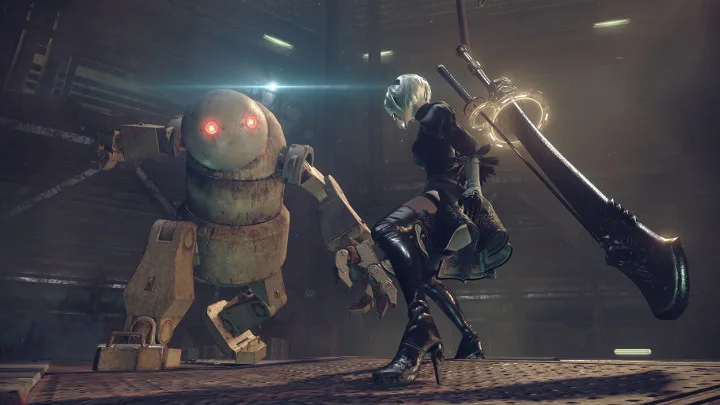
Does NieR: Automata Run on Steam Deck?
NieR: Automata Steam Deck performance can approach 60 FPS on OLED with reduced graphics settings. The game is rated Playable, with working built-in controls and manual keyboard access through Steam + X. The July 12, 2024 OLED setup runs near 60 FPS at 800p, with occasional drops into the 50s.
Playable means there is a small setup wrinkle: text fields do not automatically bring up the keyboard. Press Steam + X whenever you need to enter text. Controller button prompts match the Deck, and interface text is legible at an appropriate resolution.
Use the built-in controls for this handheld setup; external controllers have a primary-player support limitation. Budget 50 GB of available storage for the game. Steam Cloud is also supported.
Official page: NieR:Automata™ (jp.square-enix.com)
Recommended OLED Graphics Settings
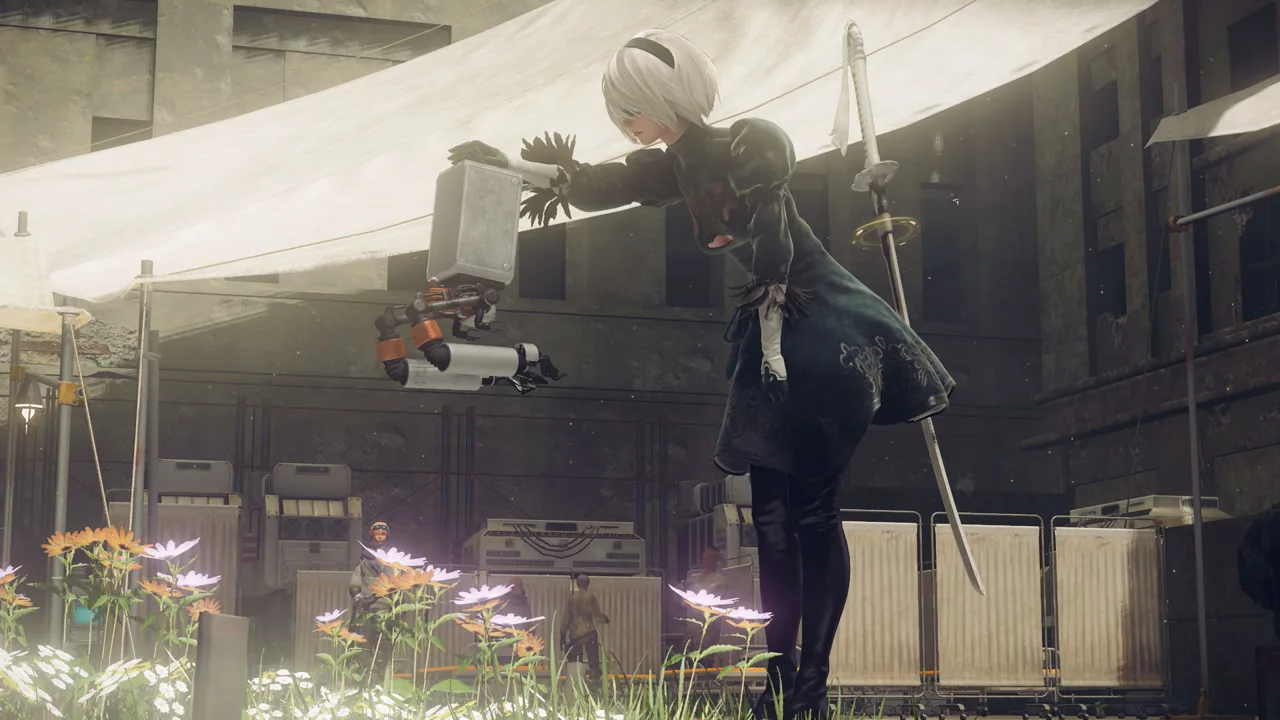 Image: Steam / Square Enix
July 12, 2024 OLED configuration
Start with these settings for a 60 FPS target:
| Setting | Value |
|---|---|
| Resolution | 800p; reduce to 1152 × 720 for more performance |
| Shadows | Medium |
| Motion blur | Disabled |
| Effects | Low |
| Ambient occlusion | On |
| Global illumination | Low |
| Display refresh rate | 60 Hz |
| Frame rate target | 60 FPS |
Lower global illumination before sacrificing more resolution. It has a substantial performance cost, and the graphics menu includes a Low setting without requiring a mod.
There is a visible trade-off: foliage can look unusually dark with global illumination set to Low because it loses some indirect lighting. Raise it to Medium if that bothers you, but expect less performance headroom.
Motion blur is a preference setting here. Disabling it matches this configuration; it is not the main reason the game stays close to its frame rate target.
Getting Closer to a Steady 60 FPS
At 800p, combat and open-world exploration can still push performance into the 50s. Reduce resolution to 1152 × 720 to ease GPU load and get closer to a consistent 60 FPS.
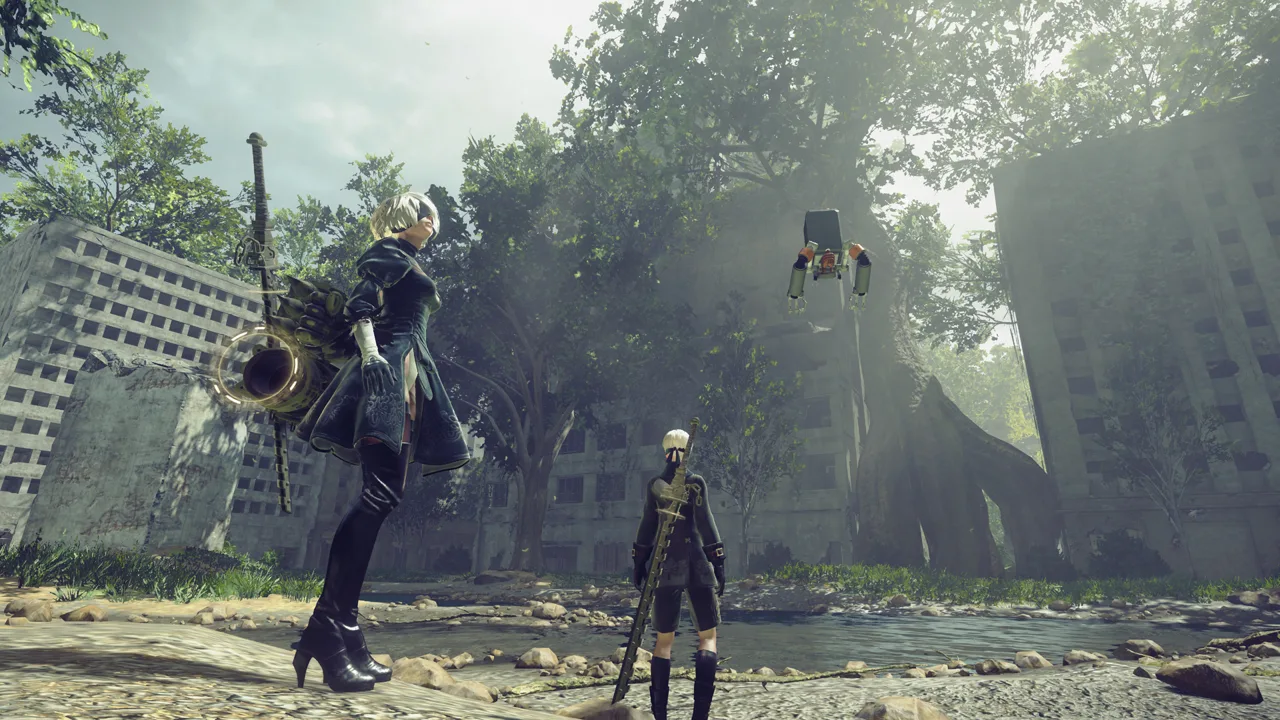 Image: Steam / Square Enix
That resolution preserves the gameplay’s 16:10 aspect ratio, filling the Deck’s screen. It is different from 1280 × 720, which uses 16:9. Menus can remain 16:9 even while gameplay fills the display.
The Deck’s built-in FSR 1.0 scaling is an optional companion to the lower resolution. Adjust its sharpening to taste, keeping an eye on the game’s already noticeable aliasing.
Match the screen to the game’s cap
The unmodified game is capped at 60 FPS. Set the OLED display to 60 Hz so its refresh rate matches that ceiling.
You can disable the Deck’s additional frame limiter and let the game enforce its own cap to reduce input latency. Unlocking the game’s frame rate requires a mod, so a 90 FPS setup involves more work than changing the OLED screen’s refresh rate.
Fix a blurry first launch
If the game opens at an extremely low resolution and the text looks unreadable, change the resolution in its display settings.
When the labels are too blurry to follow, navigate to the third main-menu option, then the fifth option, and change the second option in that submenu to 800p. That menu path applies to the July 2024 configuration.
OLED Battery Life and Power Limits
With the lower-resolution setup, OLED battery estimates fall around three to three and a half hours, depending on the scene and power settings. Busy areas and lighter stretches do not draw the same amount of power.
 Image: Steam / Square Enix
An 11 W TDP limit can stretch runtime, with roughly 30 additional minutes possible in the July 2024 setup. The compromise is less consistent frame timing: even when the frame counter stays relatively high, movement can feel less even.
Leave the manual TDP limit off if combat responsiveness matters more to you. Reduce resolution to 1152 × 720 first, then try the 11 W limit if you need extra unplugged time. Judge the result while fighting and moving through the open world, where performance demands are higher than in menus.
Continue with
 NieR: Automata The End of YoRHa Edition: Switch GuideNieR: Automata The End of YoRHa Edition brings 2B's journey to Switch. Explore performance, handheld play, combat, and key differences from the PC edition.
More in Platforms
NieR: Automata Become as Gods Edition: Xbox Buying Guide
Explore NieR: Automata Become as Gods Edition, its Xbox One X enhancements, included DLC, combat, and story structure before choosing your next action RPG.
NieR: Automata Game of the YoRHa Edition: Buyer's Guide
NieR: Automata Game of the YoRHa Edition bundles the RPG with DLC and extras. Compare PS4 and PC content, system requirements, and reasons to buy it today.
NieR: Automata PS5 Guide: How It Plays and Holds Up
Play NieR: Automata PS5 through backward compatibility. Explore PS4 Pro presentation, fluid combat, side quests, and why the first ending isn't the end.
Continue exploring
Join the community
Official channels for news, updates and player help: